RoomScene 3D
Download

For broadcasters and facilities

Your racks, equipment rooms and studios in 3D, with live status on every device

RoomScene 3D runs on your own Windows server. It builds each room from the inventory, puts every device at its U position and colours it with its open Zabbix problem or the result of its own ping check. Camera tally from the vision mixer shows up live. The on-call engineer sees which rack is red before walking in; planners change the layout in a draft and send it for approval.

Download the 30-day trial Ask for a quote

Trial
30 days, every feature, no card
Licence
From $999 a year, by rack count
Hosting
Your server. Windows installer, PostgreSQL included
Monitoring
Zabbix, or the built-in ping/TCP check
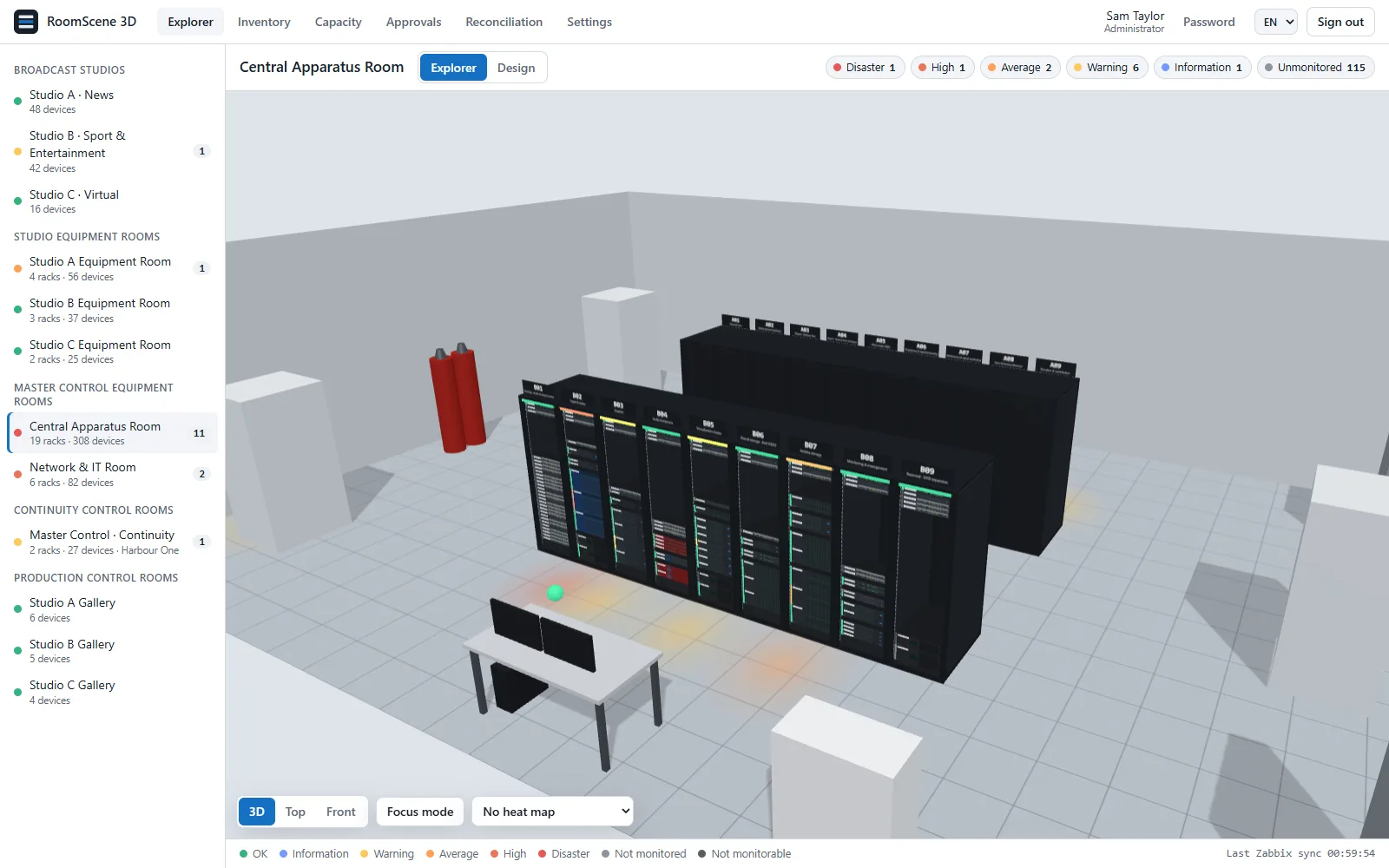
Central apparatus room of a broadcast facility in 3D, with two rows of racks
Fig. 1 Central apparatus room in 3D: 18 racks in two rows. Each device takes the colour of its worst open problem; the counters at the top filter by severity.

What you get

One installation, one browser tab

Each part works on its own. Most teams start with the inventory and the 3D rooms, then add monitoring, tally and cables.

PartWhat it doesWhat it needs
3D rooms and racksEquipment rooms, racks with every device at its U position, studios and galleries with cameras, monitors and LED walls. 3D, top and front views.Nothing else
InventoryLocation down to rack and U, model, serial, management IP, owner. Excel template, import with preview, export.Nothing else
MonitoringOpen problems on the device, the rack and the room, in Zabbix severity colours.Zabbix API token (read-only), or the built-in ping/TCP check
ReconciliationZabbix hosts missing from the inventory, and inventory devices missing from Zabbix.Zabbix
TallyOn-air and preview shown on the cameras in 3D, live.TSL UMD 3.1 or 5.0 from the vision mixer or tally router
Cable tracingPorts, patch panels with front/rear pairing, multi-hop paths drawn in 3D. Cable list to and from Excel.Nothing else
CapacityFree U, power and weight per rack, room and site. “What fits where” search. Heat maps in 3D.Nameplate data; measured values need Zabbix
Power and temperatureMeasured W or kW per rack from the PDUs, inlet temperature per rack.PDU and sensor items in Zabbix
Change workflowDraft layouts, approval with notes, printable work orders.Nothing else
UsersViewer, designer and admin roles. Active Directory sign-in. English and Turkish interface.AD is optional

01 · 3D rooms

CAR, MCR, studios and galleries, as they are

Each room is a 3D scene you can turn, zoom and walk along. Racks show every device at its U range, with the front panel drawn from its type, height and colour. Studios and control rooms hold the floor equipment that rack tools leave out: cameras on pedestals, monitor walls, LED walls, lighting, desks, CRAC units.

  • 3D, top and front views. The front view reads like a rack elevation.
  • Click a device for its card: status, hardware, network, owner, connections.
  • Focus mode dims everything except the selected rack or device.
  • Rooms are grouped the way the building is: studios, studio equipment rooms, master control, continuity galleries.
  • Design mode works on a draft. Move devices to another rack or U, add racks, place equipment from the library. The live layout does not change until the draft is applied.

Rack elevation software

Rack card beside the 3D view: occupancy, power, weight, temperature and devices by U
Fig. 2 Rack A05 and its card: U occupancy, measured and nameplate power against the budget, weight, inlet temperature and the device list by U.

02 · Inventory and Excel

Start from the spreadsheet you already have

Most facilities keep the equipment list in Excel. RoomScene 3D reads it. Download the blank template, fill it in or paste your columns, and import. You see every row in a preview, new, changed or rejected with the reason, before anything is written.

  • Export the whole inventory, or one room, back to Excel at any time.
  • Send devices to a room: they land in that room's draft, sorted into racks by type (servers to the server rack, graphics to the graphics rack) or onto the floor. You then adjust them in design mode.
  • English and Turkish column headings are both recognised.
  • If you connect Zabbix, hosts can seed the inventory. Matching names are linked; the rest wait in an unplaced list.
  • Reconciliation lists what Zabbix has and the inventory lacks, and the other way round.
Inventory list with the Excel import panel open
Fig. 3 Inventory with the Excel import panel open: Zabbix groups, management IP and location down to the U.

03 · Monitoring

Alarms on the rack, in Zabbix colours. With or without Zabbix.

With Zabbix, RoomScene 3D reads the open problems through the API with a read-only token and paints each device with its worst one. The rack glows, and the room list shows a count, so a High on a power supply in rack A07 is visible before you open the room. The severity counters in the toolbar filter the scene.

Without Zabbix, switch on the built-in check. Every device with a management IP gets a ping or a TCP port check. Three missed rounds in a row open a High problem; it closes when the device answers again.

  • Devices linked to a Zabbix host are monitored by Zabbix only. The built-in check covers the rest.
  • Per device: ping, TCP port, or off.
  • Broadcast equipment that cannot be monitored is marked “not monitorable”, so it neither looks healthy nor shows up as missing.
  • Problems of disabled hosts and triggers are not shown.

3D visualization for Zabbix

Rack row in 3D with devices coloured by alarm severity
Fig. 4 Open problems in rack colours. The toolbar counts problems by severity; pointing at a device shows its name and state.
  • OK
  • Information
  • Warning
  • Average
  • High
  • Disaster
  • Not monitored
  • Not monitorable

04 · Tally

Which camera is on air, seen from anywhere in the building

RoomScene 3D listens for TSL UMD from the vision mixer or the tally router. The camera on program gets a red lamp on top and a red ring on the floor; the camera in preview gets a green lamp. It follows every cut.

  • TSL UMD 3.1 and 5.0. The version is detected from the packet.
  • UDP and TCP on the same port (8900 by default). The DLE/STX framing of 5.0 over TCP is handled.
  • 3.1: tally 1 is program, tally 2 is preview. 5.0: red or amber is program, green is preview.
  • Incoming sources are listed live in Settings › Tally. Map each address to a camera there, or on the camera's card.
  • Listen-only. Nothing is sent back to the mixer.

TSL tally in 3D

Fig. 5 A news studio in 3D. The camera on program has a red lamp and a red ring on the floor; the camera on preview has a green lamp.

05 · Cable tracing

Follow a signal from the server port to the switch, through every patch panel

Ports belong to devices. Patch panels have front ports 1…N and rear ports R1…RN, paired, so a path passes through the panel the way the copper does. Press Trace on any port: the card lists each hop with cable label, type and length, and the scene draws the route through the racks.

  • Inside a rack the route runs down the side channel; between racks it goes over the overhead tray. Racks off the path fade out.
  • Device ports leave the rack at the front, patch panel rear ports at the back.
  • Cable list from Excel: label, A device, A port, B device, B port, type, length. Missing ports are created; a label that already exists with other ends is moved, not duplicated.
  • Cables are live records, not part of a draft. Every change goes to the change log.

Cable tracing

Fig. 6 Trace from a camera control unit's SDI output through two patch panels and an 86 m tie line to the video router: 3 cables, 93.5 m.

06 · Capacity, power, temperature

Know whether the next server fits before anyone carries it in

For every rack: used and free U, the largest free block, nameplate power against the rack's power budget, weight against its load limit. The same figures roll up per room and per site. If a draft is open, the capacity page shows “now” and “after the draft” side by side.

  • “What fits where”: enter height in U, power in W, weight in kg and quantity. You get the racks that can take it, best balanced first, and can drop it into the draft from there.
  • Heat maps in 3D: U usage, power, weight or inlet temperature, green to red across the racks.
  • Measured power and temperature come from Zabbix every two minutes: PDU totals (or the sum of the phases) in W or kW, inlet and ambient sensors in °C. A rack's power is the sum of its PDUs, or of its devices' readings (iDRAC, for example) where there is no PDU.
  • A/B feeds are shown per PDU, so you can see whether one feed could carry the rack alone.
  • At 80 % of the budget a rack turns yellow, at 100 % red. A draft that goes over is flagged, not blocked; the approver sees the warning.
Capacity table with U, power and weight per rack
Fig. 7 Capacity of one room: U, power against budget, weight, largest free block and status per rack.
Top view of a rack room with an inlet temperature heat map
Fig. 8 Top view with the inlet temperature heat map (18–28 °C). The same overlay can show U usage, power or weight.

07 · Change workflow

Moves go through a draft, an approval and a work order

A designer prepares the change as a draft: add a rack, move five storage units, retire a KVM. RoomScene 3D works out the difference from the live layout. The draft goes for approval with a note; the approver accepts it or sends it back with a reason. An approved draft becomes a work order with one step per move, old position and new position. Engineers tick off the steps; when all are done the draft becomes the live layout.

  • Power and weight warnings travel with the draft.
  • A draft under approval cannot be edited. Imports and sends from the inventory open a new draft instead.
  • Work orders print cleanly for the engineer on the floor.
  • Approval is switched on in Settings. Without it, designers apply drafts directly.
  • Who sent, who approved, when and why stays in the draft's history.
Draft layout waiting for approval, with its list of changes and warnings
Fig. 9 A draft waiting for approval: the changes against the live layout, with power and weight warnings for the racks involved.

08 · Users and sign-in

Active Directory sign-in, three roles

Viewers look. Designers also edit drafts. Admins also manage settings and users. Roles can come from Active Directory groups, nested groups included. The connection to AD is always encrypted (LDAPS or StartTLS), and local accounts keep working if AD cannot be reached.

  • No service account needed: users authenticate with their own credentials.
  • Interface in English and Turkish, switchable from the top bar.
  • Clients use Chrome, Edge or Firefox. Nothing to install on desktops.

Video

One-minute tour

Recorded from a demo dataset: a fictional facility with equipment rooms, a studio and a gallery.

Fig. 10 An equipment room in 3D, a rack card, temperature and power heat maps, a studio and the capacity table.

How it works

Install, model, connect

  1. Install

    Run the setup on a Windows server. It installs RoomScene 3D and its own PostgreSQL as Windows services and opens the setup wizard in the browser. You do not need to know PostgreSQL.

  2. Model

    Import your equipment list from Excel, or let Zabbix hosts seed it. Place racks and devices in each room's draft. Or send us floor plans and rack elevations and we build the model for you.

  3. Connect monitoring

    Paste the Zabbix URL and a read-only API token; the wizard tests it and shows how many hosts it sees. No Zabbix: switch on the built-in check. Add the TSL port if you want tally on the cameras.

The trial is the full product. When you buy, you load the licence into the same installation. Nothing is reinstalled and nothing you built is lost.

Pricing

Yearly licence by rack count

You pay for the racks you model. Studios, galleries and control rooms are not counted.

Yearly licence, prices in US dollars
StandardProfessionalEnterprise
RacksUp to 50Up to 200Unlimited
Price per year$999$1,990$7,500
Studios, galleries, control roomsNot countedNot countedNot counted
FeaturesAllAllAll
InstallationOne serverOne serverOne server
  • 30-day trial with every feature on. No credit card and no form to fill in.
  • The licence is bound to the server. A server without internet access is activated offline with a .lic file.
  • When the trial ends, monitoring and alarms keep working. Editing, design and import lock until a licence is loaded.
  • To buy, or for a quote that includes the modelling service, write to contact@roomscene3d.com.

Download the 30-day trial Ask for a quote

Modelling service

Send us drawings, get a finished model

Optional. If you would rather not place six hundred devices by hand, send us what you have. We build the rooms and you load the result into your installation.

ItemPrice
Rack room, per rack: the rack, its devices at their U positions, floor equipment around it$40
Studio or control room, per room: room shell from your drawings, equipment placed$390
Minimum order$250

Example: an equipment room with 30 racks and two studios comes to 30 × $40 + 2 × $390 = $1,980.

What to send

  • Floor plans, CAD or PDF, or a sketch with dimensions
  • Rack elevations, or a rack list with U positions
  • Photos of each rack front where the documentation is out of date
  • Your equipment list, if there is one

What you get

  • Rooms, racks and floor equipment, ready to load
  • Devices linked to your Zabbix hosts by name where they match
  • A list of anything we could not place, with the reason

FAQ

Questions we get

Do we need Zabbix?

No. Inventory, 3D rooms, cables, capacity and the change workflow work on their own. For live status without Zabbix, switch on the built-in ping/TCP check. Measured power and temperature do need Zabbix.

Does it change anything in Zabbix?

No. It connects with a read-only API token and only reads hosts, problems and items.

What counts as a rack?

Every rack you model in an equipment room. Studios, galleries, control rooms and the equipment on their floors are not counted.

Where is our data?

On your server, in the PostgreSQL database the installer sets up. Nothing goes to a cloud. The only outside contact is licence activation, and that can be done offline.

Our servers have no internet access.

Use offline activation: copy the machine ID from Settings › License, get a .lic file from us, and load it on the server.

What happens when the trial ends?

The live view, monitoring and alarms keep running. Editing, design and import are locked until a licence is loaded. Your rooms and inventory stay as they are.

Which tally protocols are supported?

TSL UMD 3.1 and 5.0, over UDP or TCP. Most broadcast vision mixers and tally controllers can send one of them. RoomScene 3D only listens; it sends nothing back.

Can we bring our existing spreadsheets?

Yes. Equipment lists and cable lists both import from Excel (.xlsx) or CSV, with a preview before anything is written.

Which languages does the application speak?

English and Turkish. Switch from the top bar at any time.

Is there a Linux version?

Not yet. The server runs on Windows. Write to us if you need Linux.

Who makes it?

A small software team in Ankara, writing software since 1989. We also make LedPlayMeter, soccerBoard7 and CueFinch.

Same team

Other products

  • LedPlayMeter

    Playlist and playout software for perimeter LED boards in stadiums and arenas. Works with any LED processor.

    ledperimetersoftware.com

  • soccerBoard7

    Scoreboard software for stadium LED displays, used by more than 500 clubs and venues in over 50 countries.

    footballscoreboardsoftware.com

  • CueFinch

    Lower thirds, tickers and score bugs for live streams, put on air through an OBS or vMix browser source.

    lowerthirdsoftware.com

Try it on your own rooms

Install the trial on a test server, import one room from Excel and connect monitoring. Questions, quotes and licence requests: contact@roomscene3d.com.

Download the 30-day trial Ask for a quote

contact@roomscene3d.com · tahirfeyzioglu@gmail.com